
Streamlining Your KartmaX Dashboard: Customize your Mobile App Homepage
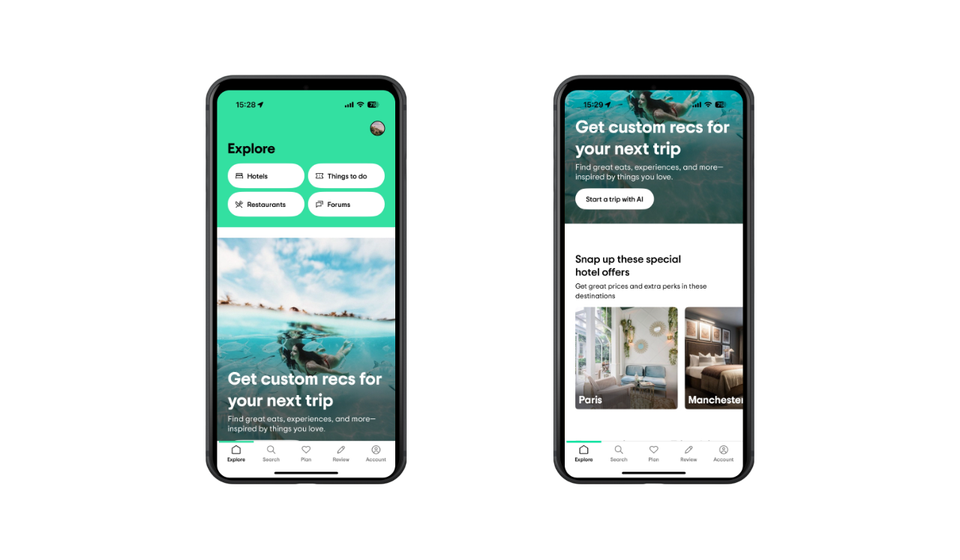
In today’s fast-moving digital world, keeping your mobile app content up to date and engaging is essential. With the KartmaX dashboard, you can easily manage and upload new sections that appear on your mobile app, ensuring your users always see the latest offers, updates, and promotions.
Steps to upload sections in the KartmaX Dashboard:
Step 1: Access the CMS
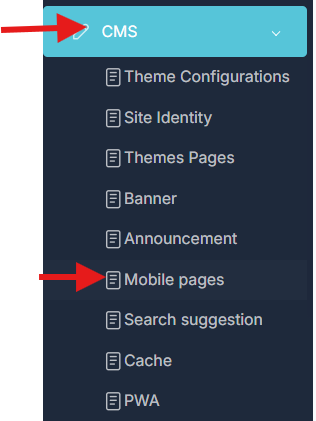
- Navigate to the CMS: Log in to your KartmaX dashboard and click on the CMS option in the left sidebar.
- Click on Mobile Pages: Select the Mobile Pages section to manage the content that will appear on your app.
Step 2: Adding a New Section
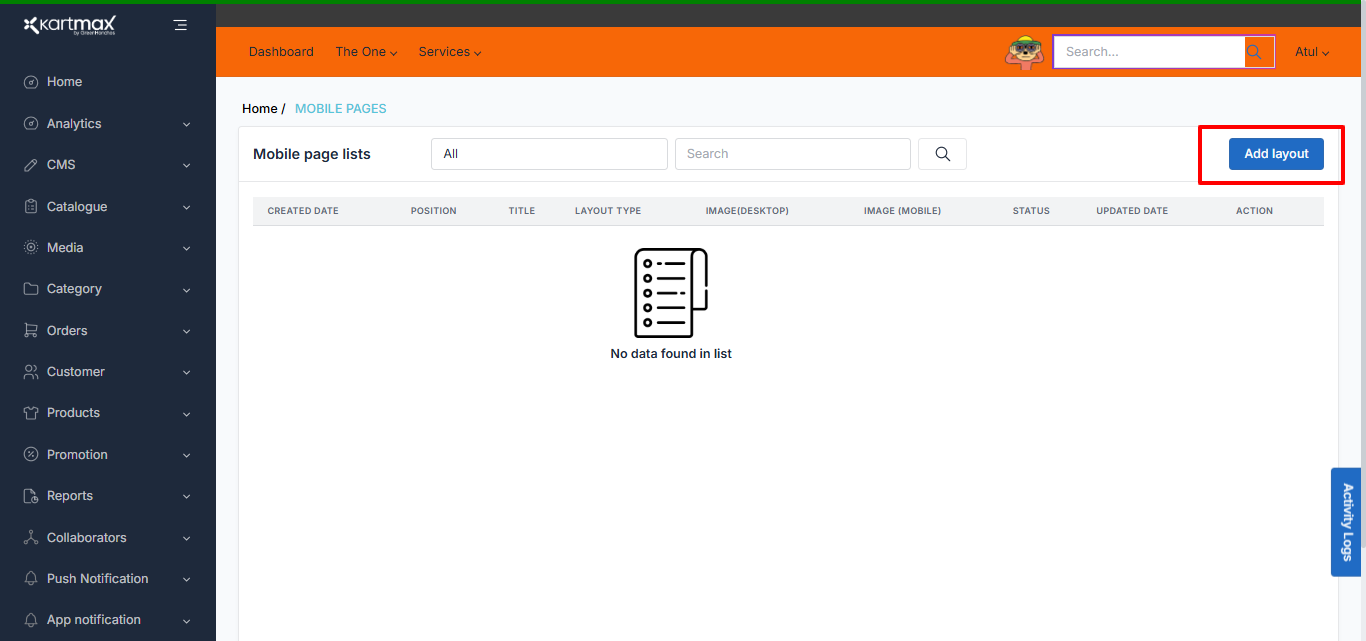
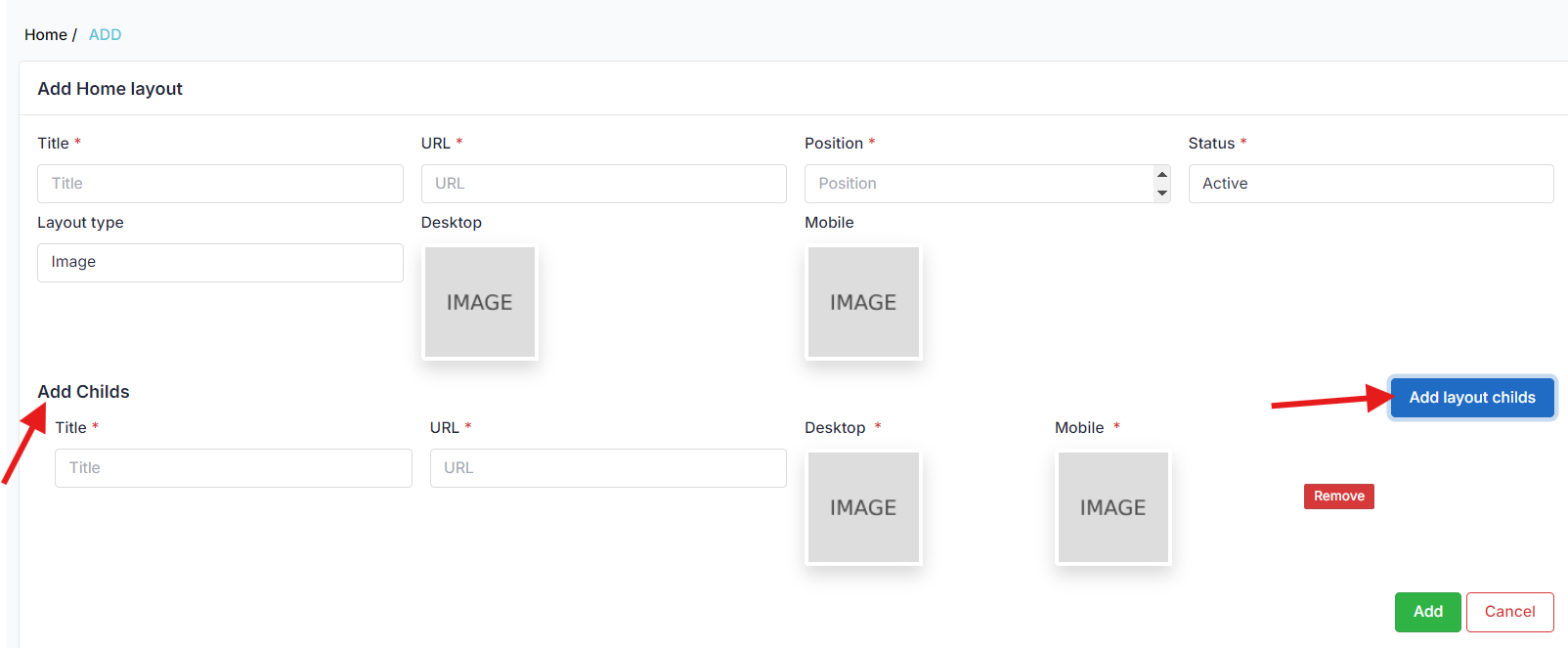
- Add a Layout: In the top right corner, click on Add Layout.
- Fill in the Details:
- Title: Enter a descriptive title for your new section.
- URL: Add the URL for the section.
- Position: Specify where the section will link to.
- Status: Choose the status (active/inactive) for the section.
- Layout Type: Select the type of layout of the section you want to use.
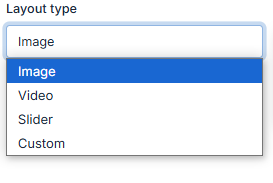
- Images/video: Upload images/video for mobile views.
- Custom: Use this option if your design doesn’t fit the standard layouts.
- Choose sliders: If your section includes a slider or multiple images under a main heading:
- Add Child Layouts: Create child layouts by providing an image, title, position and it's URL.
Note: Any new section may require developer involvement for positioning and integration on the respective page.
Complete the Process: Once you’ve filled out all the necessary information, click Add to finalize your new section.
Step 3: Updating an Existing Section
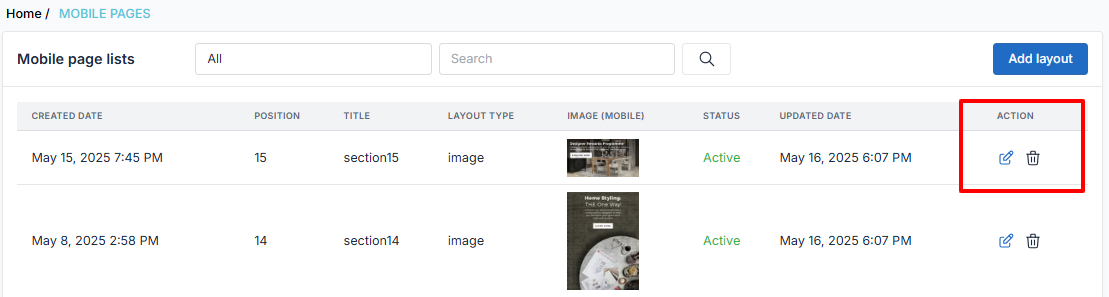
- Actions: Find the section you wish to modify/Delete in the actions menu.
- Update the Details: You can adjust the following:
- Title: Change the title as needed.
- Position: Update the position of the destination.
- Status: Modify the status if necessary.
- Layout Type: Select a different layout type mobile/video if desired.
- Images/video: Change the Images/video of the mobile as required.
- Adjust Child Layouts: If the section contains sliders or multiple images, edit the child layouts similarly.
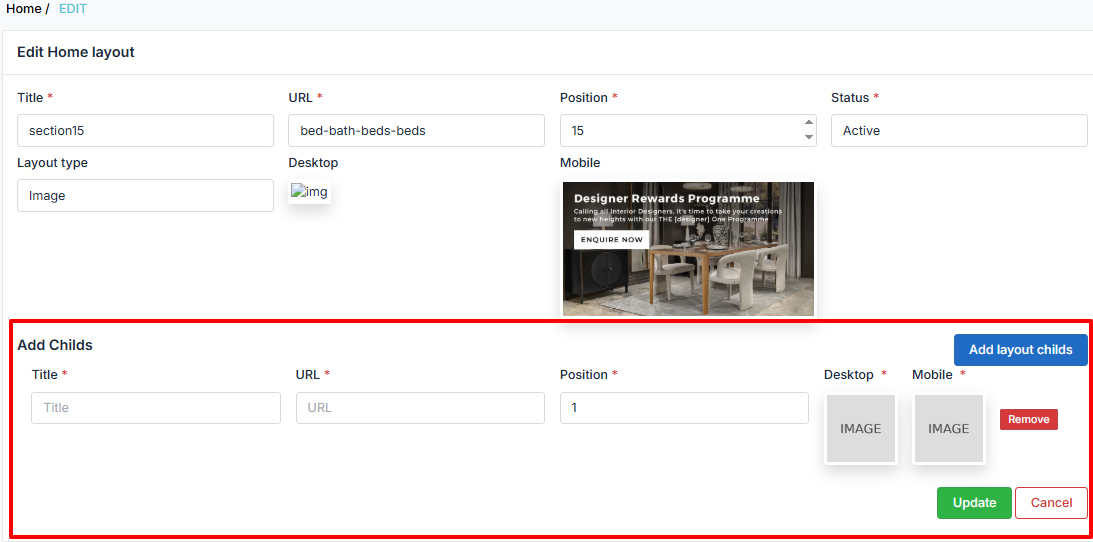
⚠️ Heads-up: Desktop image support for this section will be deprecated soon, as this module is dedicated to managing homepage content for mobile apps only.
Conclusion
By following these simple steps, you can effortlessly keep your KartmaX mobile app content fresh, relevant, and engaging. Regular updates not only improve user experience but also help keep your audience informed about the latest features, campaigns, and offers.


![[Information] Core Web Vitals affected due to Cloudflare Issue in Delhi-Mumbai region](https://images.unsplash.com/photo-1593438002985-ce805be04da9?crop=entropy&cs=tinysrgb&fit=max&fm=jpg&ixid=M3wxMTc3M3wwfDF8c2VhcmNofDF8fHBhZ2VzcGVlZHxlbnwwfHx8fDE3MDE4NDU5Mjl8MA&ixlib=rb-4.0.3&q=80&w=750)

